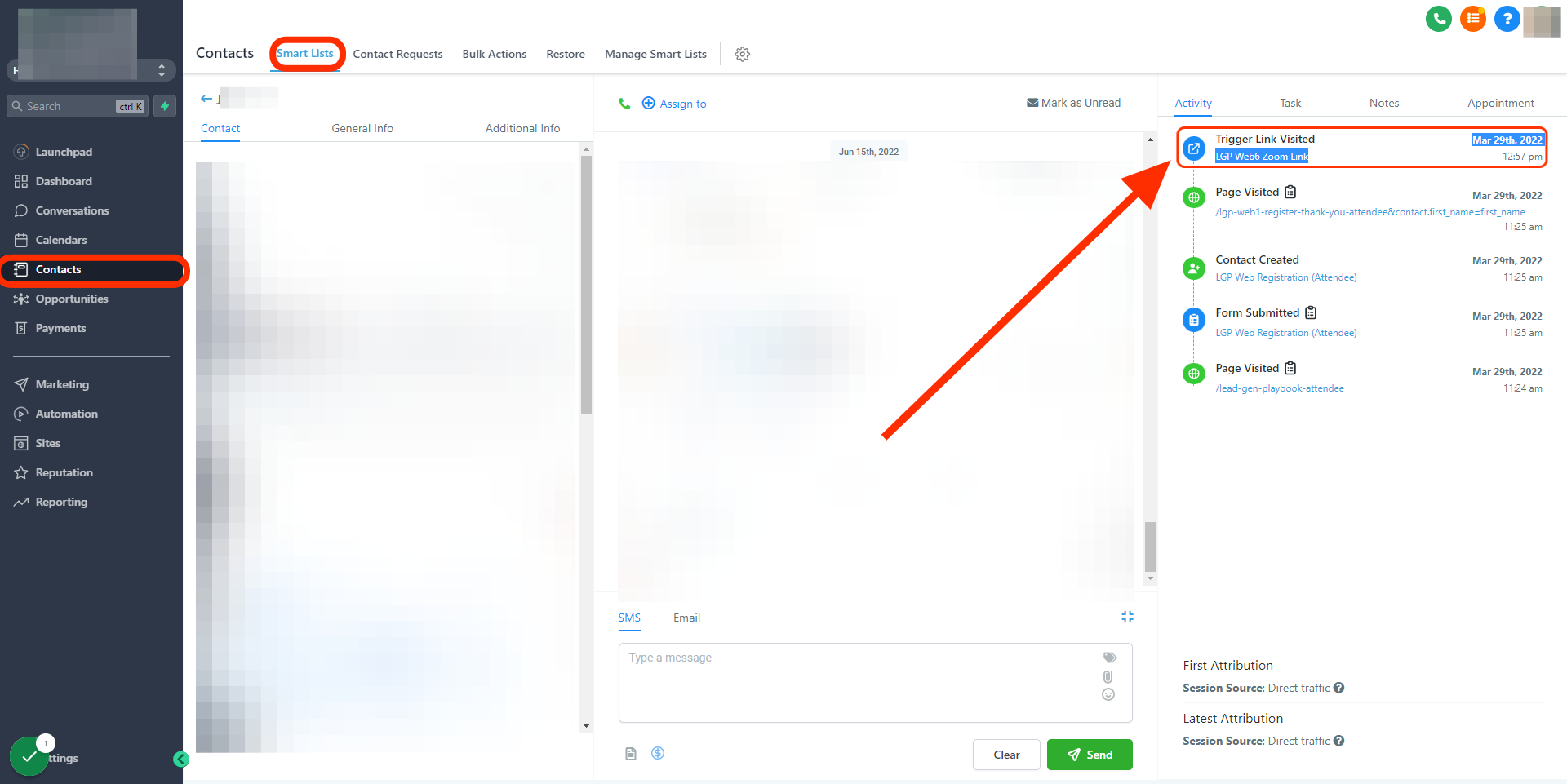
Trigger links are a great way to pivot off a “click” within an SMS or Email. When a trigger link is clicked the system will attribute the click to the contacts activity timeline as well as trigger a predetermined action or a workflow
Please Note:
Trigger links are supported in SMS and Email ONLY.
Trigger Link How-to's
How to use Custom Values and trigger links to dynamically change your URL.
This is great if you're running promotions monthly or quarterly and wanted to use the same workflow. Simply update your custom value URL to point to your new “offer URL” and the system will dynamically update the trigger link.
Please Note:
- This will not retroactively affect any previous link URLs from past campaigns.
- When setting up your workflow please make sure to add the “trigger link” to your SMS or Email message body. Placing the “Custom Value” in the message body will not “fire” the trigger link when clicked.
How to use the Workflow Wait step for a Trigger link Click
In this video, we cover how to use a “wait” step action within a workflow to trigger the next step based on a trigger link click. The workflow used in this can be found in your workflow library as “Recipe - Appointment Confirmation + Reminder + Survey + Review Request”
How to set up an unsubscribe trigger links by communication channels (SMS, Email, GMB, FB/ IG)
Please Note:
By default the SMS carriers have prebuilt opt-out keywords like [‘STOP’, ‘STOPALL’, ‘UNSUBSCRIBE’, ‘CANCEL’, ‘END’, ‘QUIT’]. When these keywords are used the lead/ contact will automatically be unsubscribed.
To opt back-in the lead/ contact will need to respond “Start”.
FAQ
How do I find the contacts activity timeline?
Click on contacts > Smartlist > search for contact > Click on activity