LSA - Reserve with Google Integration * The following integration requires Local Services Ads account * The Integration supports only the “Home Services” Company Niche (Local Service providers) * Currently Reserve with Google is supported only in United States * Settings > Business Info > Company Name and Address should match LSA Business Details
Now you can integrate Local Services Ads - Reserve with Google by following the below steps
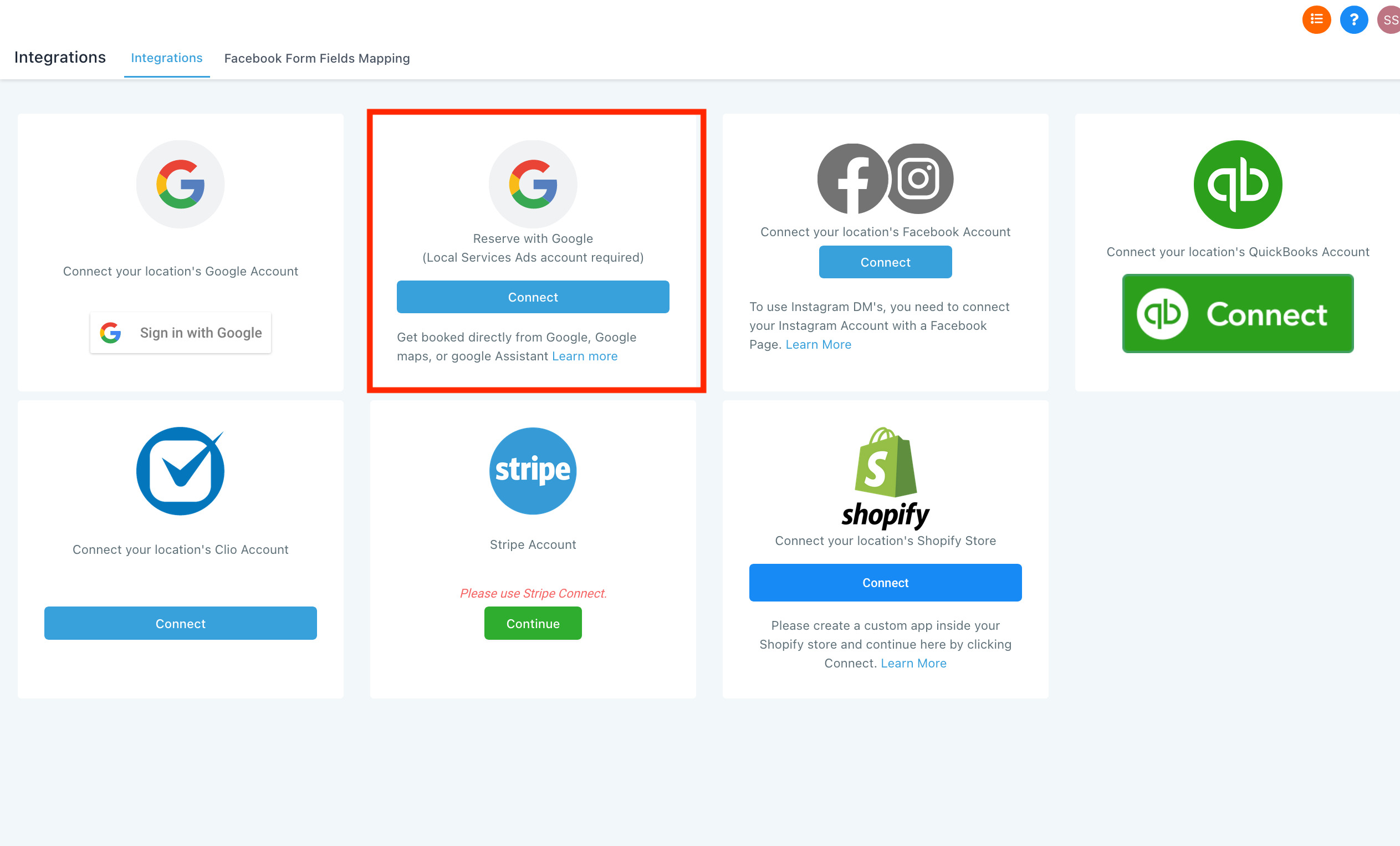
1. In your Account go to Settings > Integrations and click “Connect” under Reserve with google
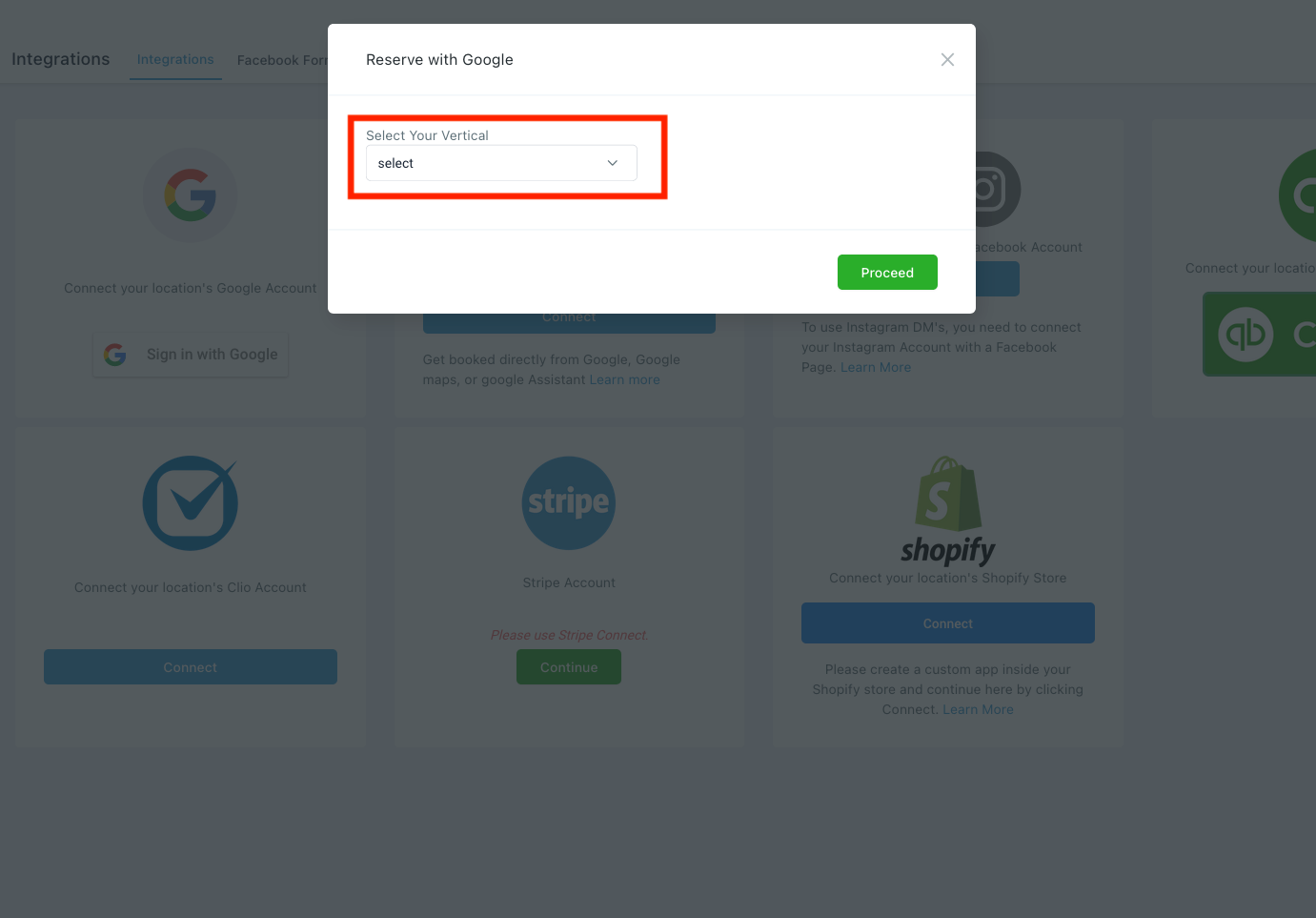
#2. Choose the Local service you are providing and click “Proceed” to open Google Local services Ads in a new tab
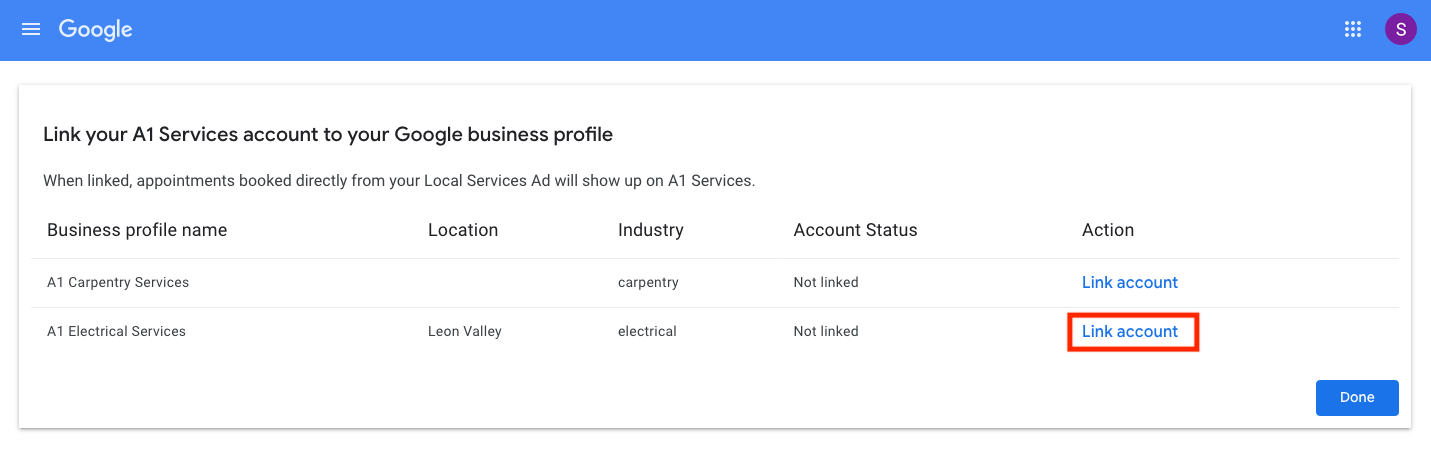
#3. Login and link your Google Local Services Ads account (opened in a new tab)
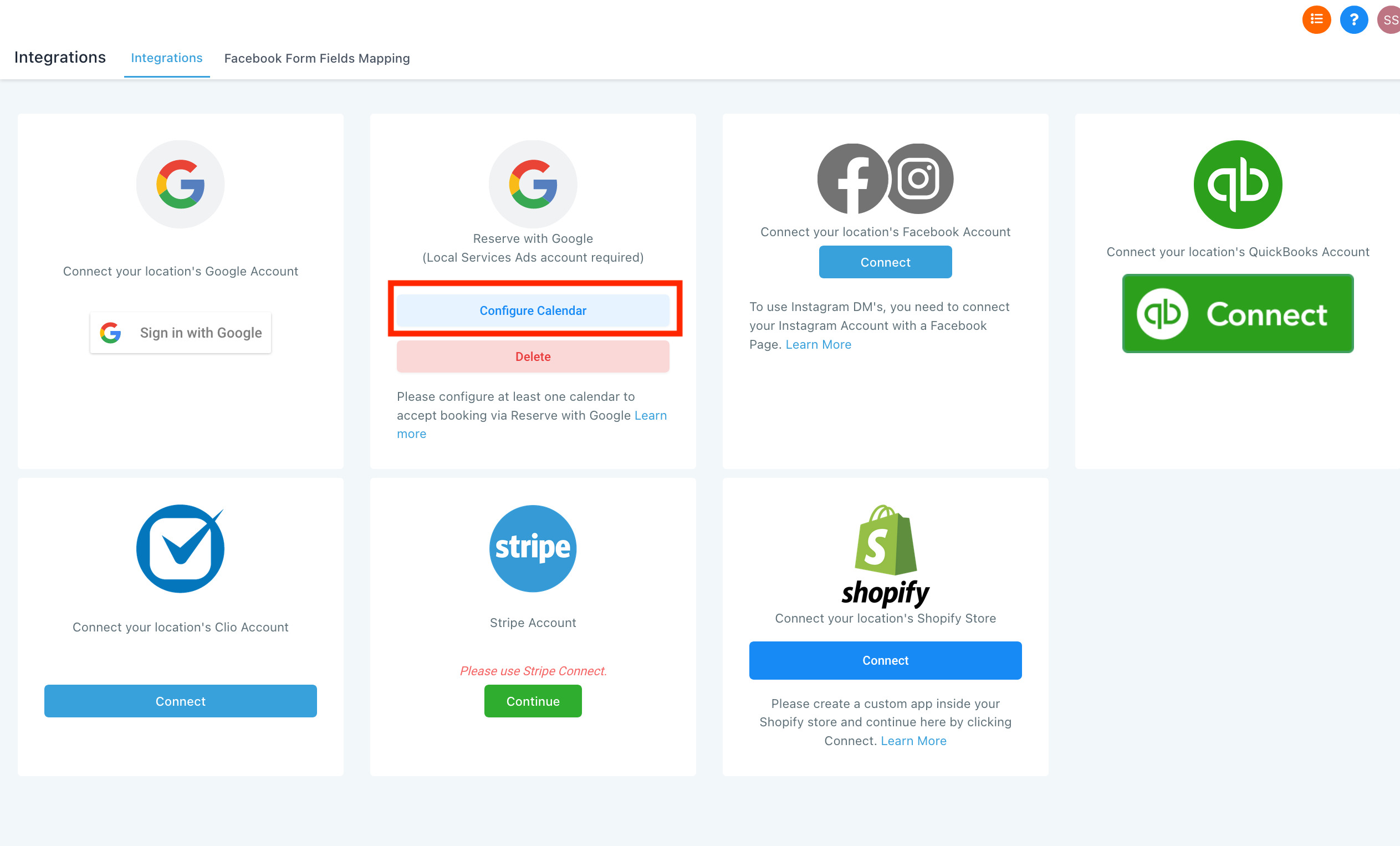
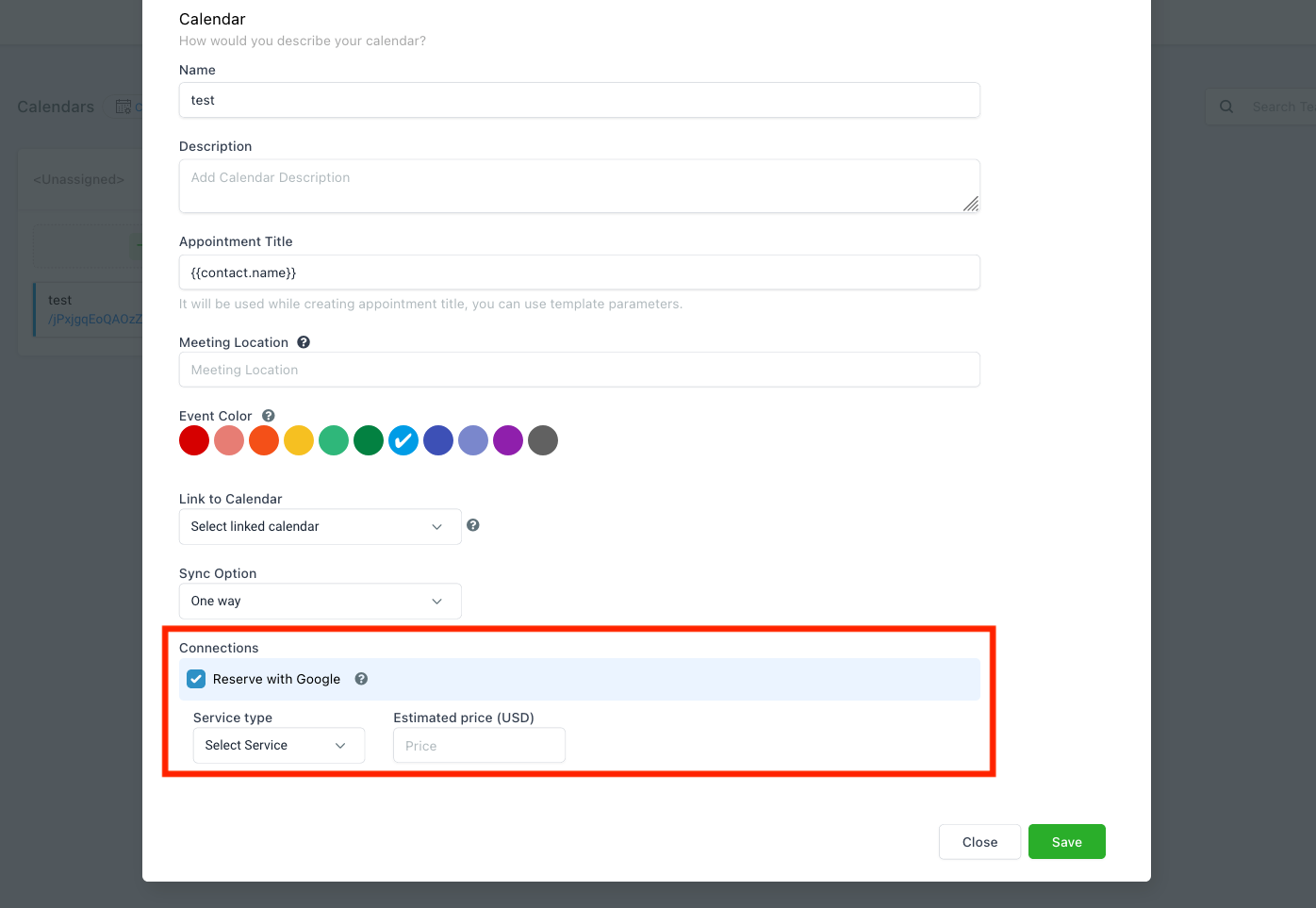
#4. Click “Configure Calendar” to navigate to Calendar Settings
#5. Create/Edit a calendar to configure Reserve with Google service
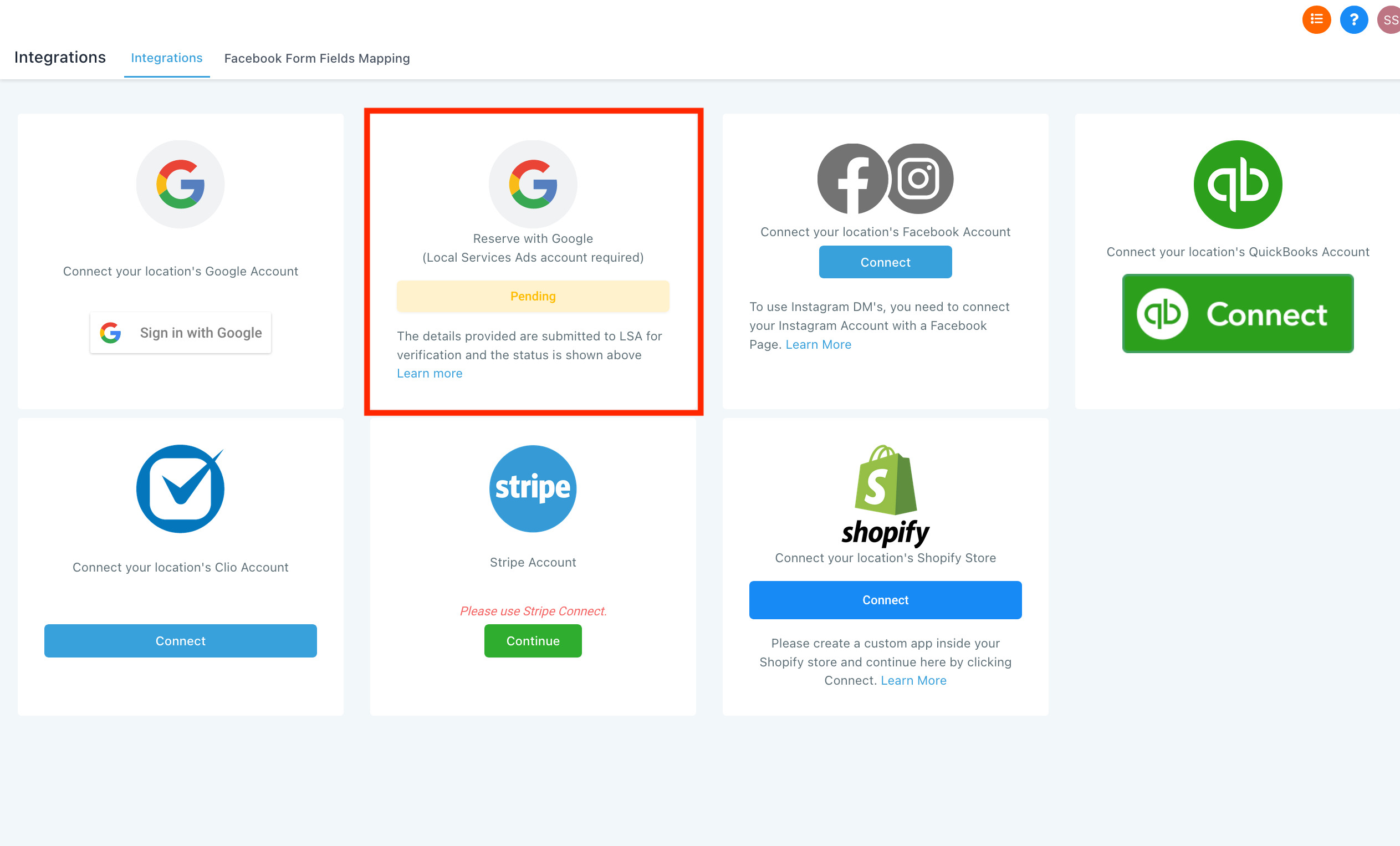
#6. Integration Status - Pending: It will take up to 48Hrs for Google to Verify the integration
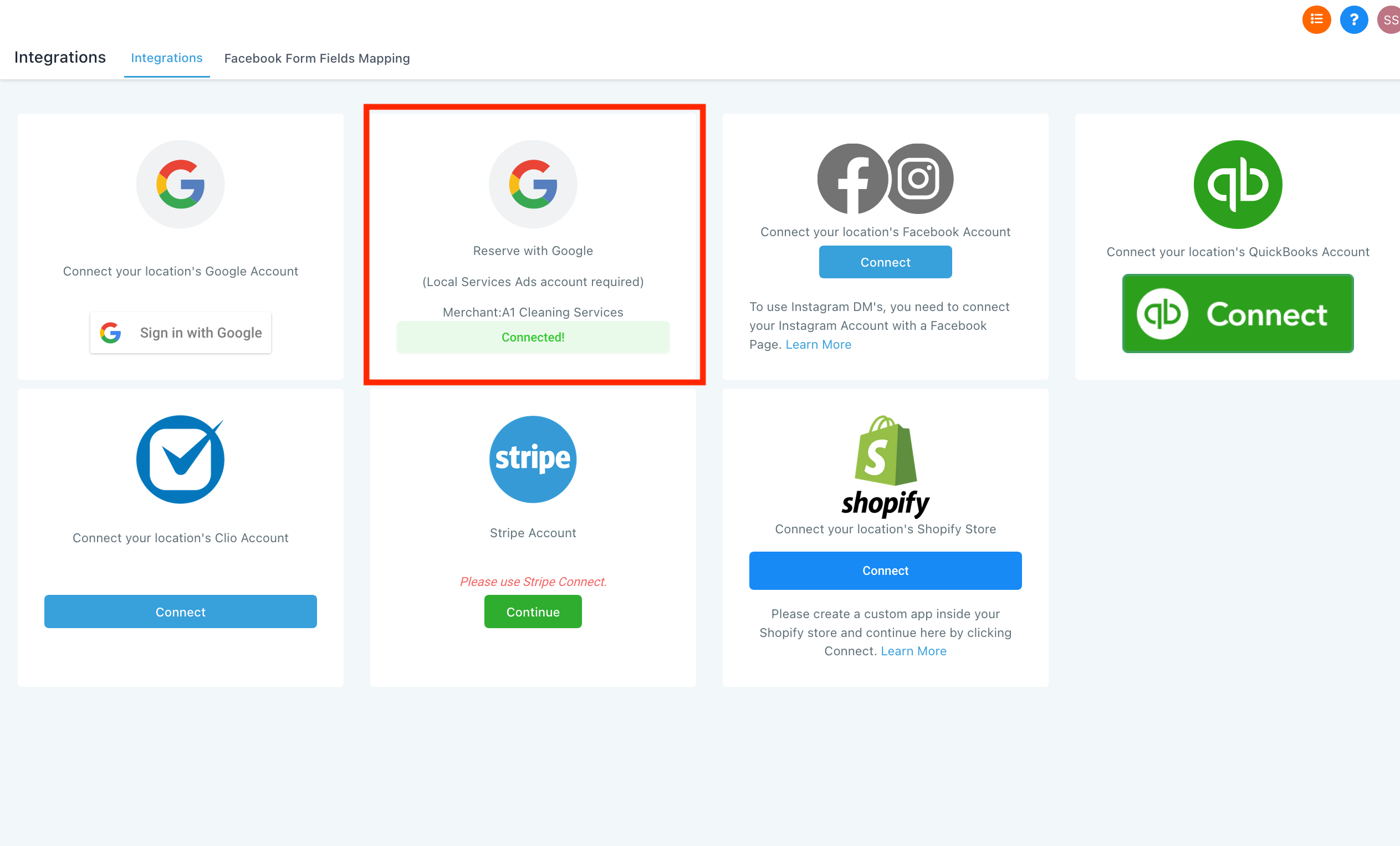
Note: If the status is “Not Matched”, then your Business Info didn't match with your LSA Business Details. So, you will have to update Settings > Business Info and reintegrate (Delete & Integrate again).
#7. Your LSA - Reserve with Google Integation is done!
- ****
How it works?
The Appointments booked through Local Services Ads are managed in the respective Account's Calendar.
<https://ads.google.com/local-services-ads/how-it-works/>
<https://www.google.com/maps/reserve/>