Calls & Voicemail Drop Events How to set up automated calls and voicemail drops within your campaigns and how they work
Workflow setup
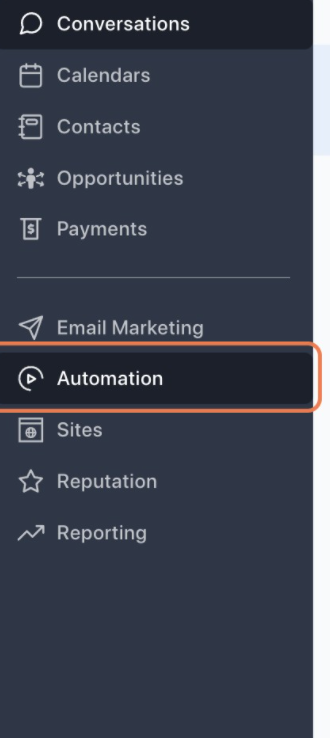
Once you are in the subaccount, Click on Automation on the left menu
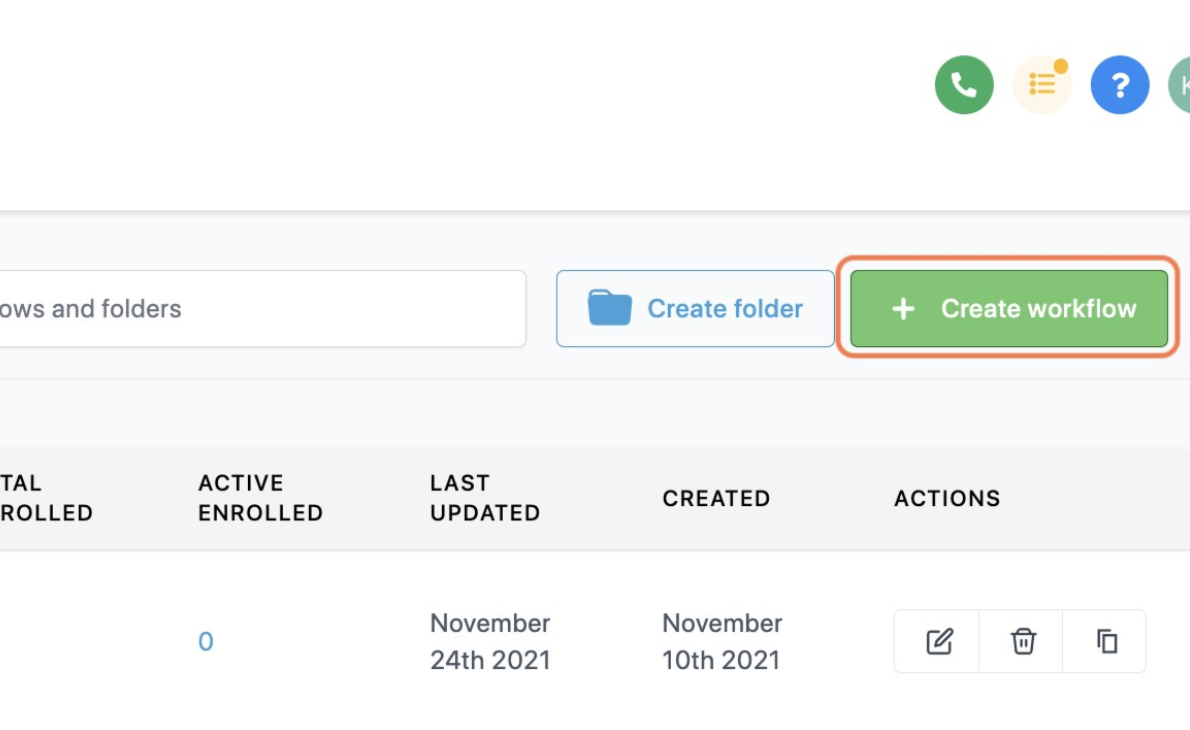
Click on Create workflow
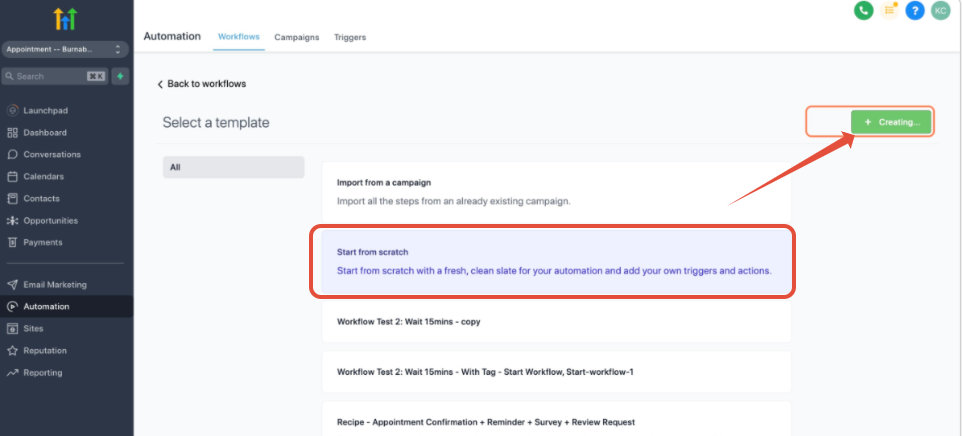
Click on Start from scratch… then Click on Create new workflow
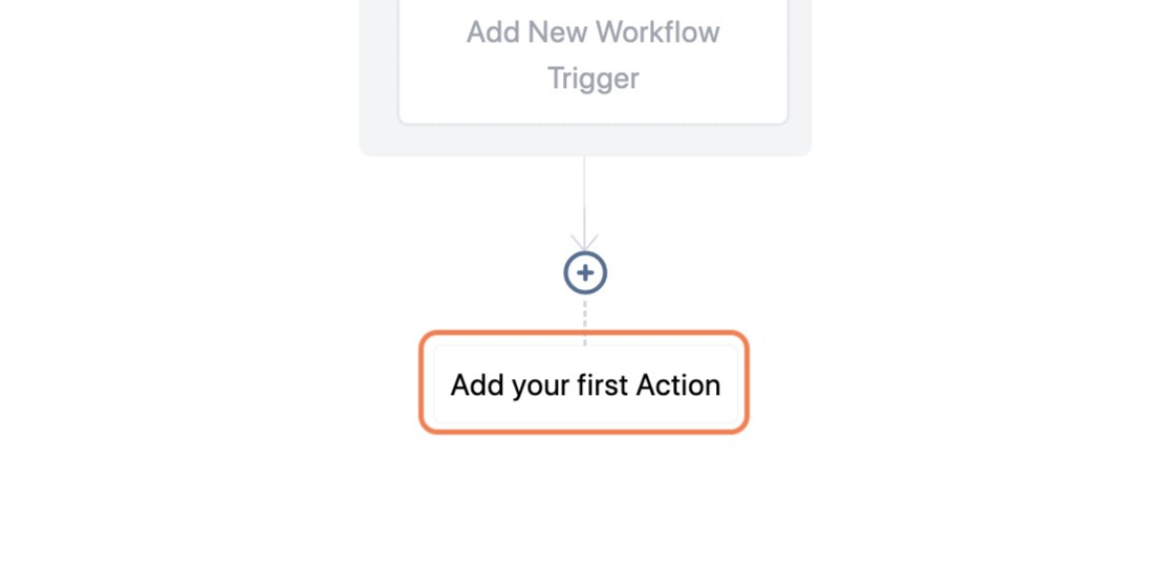
After you configure the workflow trigger
Click on Add your first Action
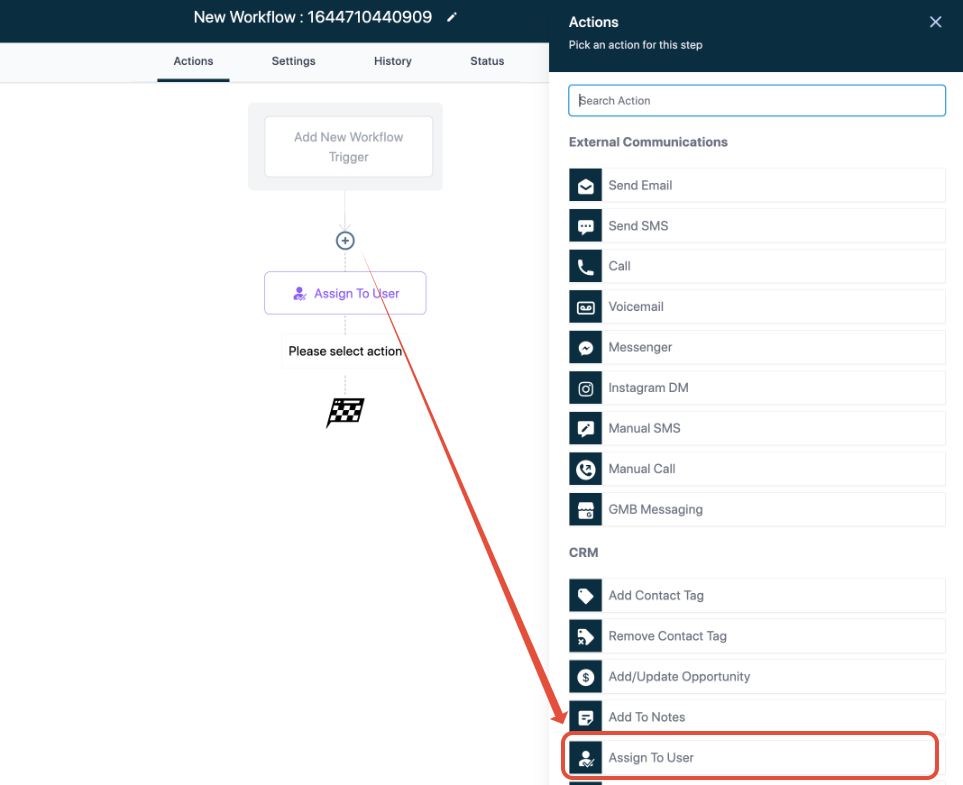
Click on Assign to User if you want the calls to go to the assigned user’s phone.
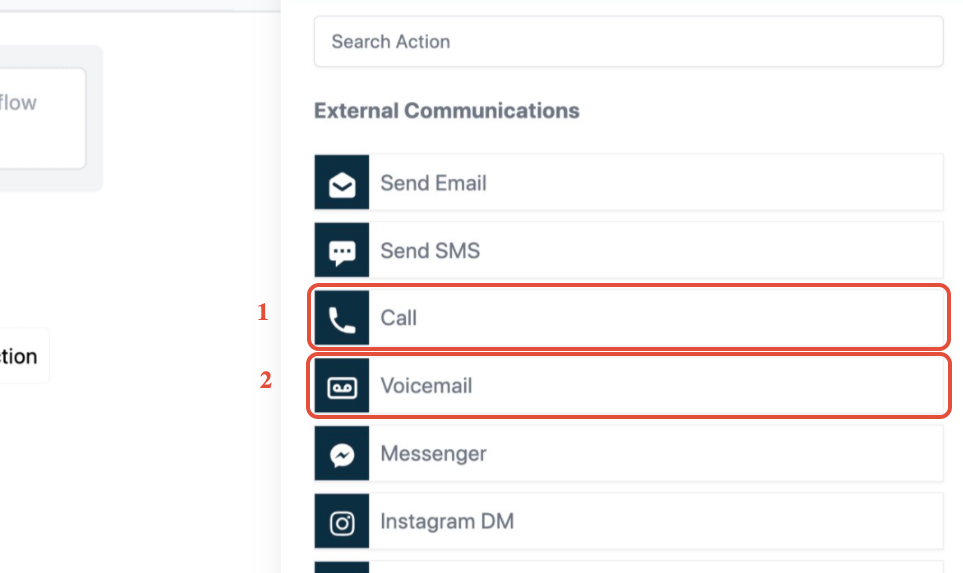
Click on Call, then follow by a voicemail action
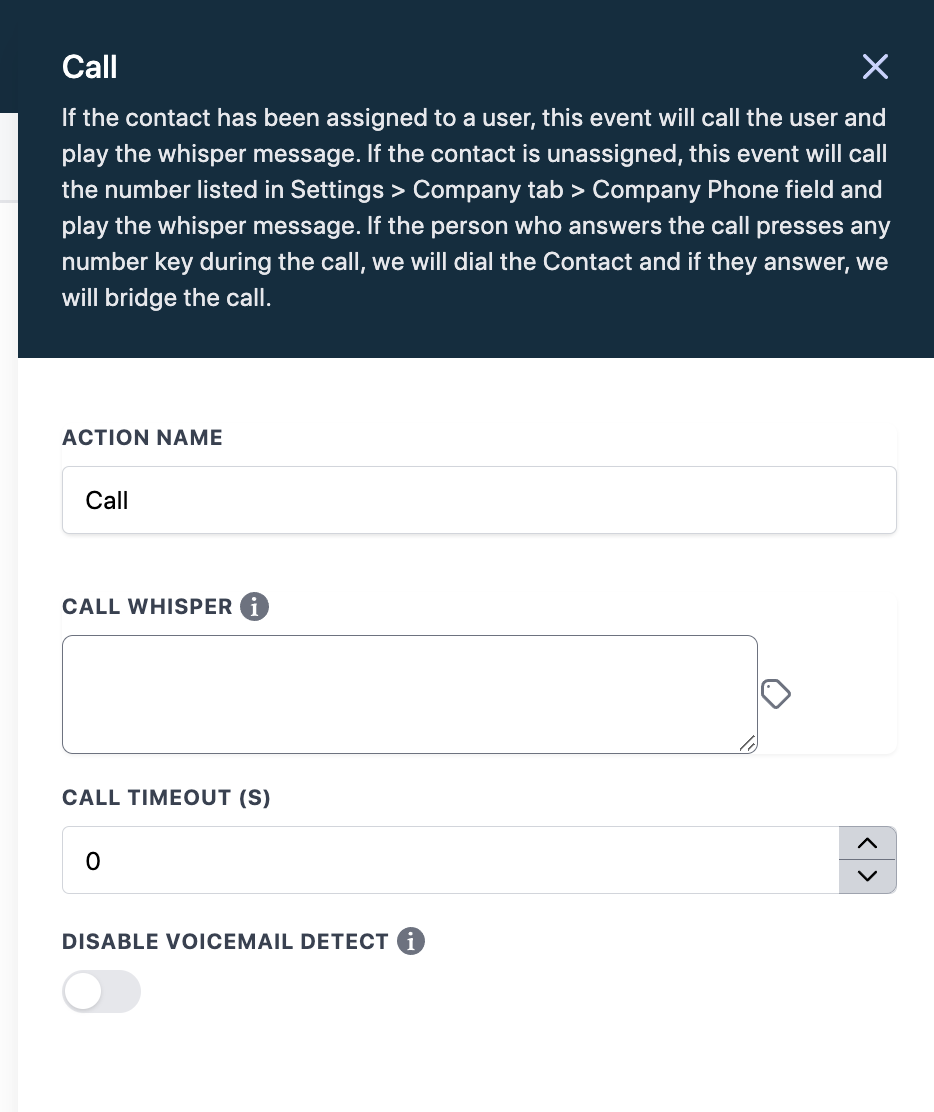
By default the call whisper is You have a new lead, John Smith, press any button to connect.
You can modify the Call whisper message here:
Voicemail detection
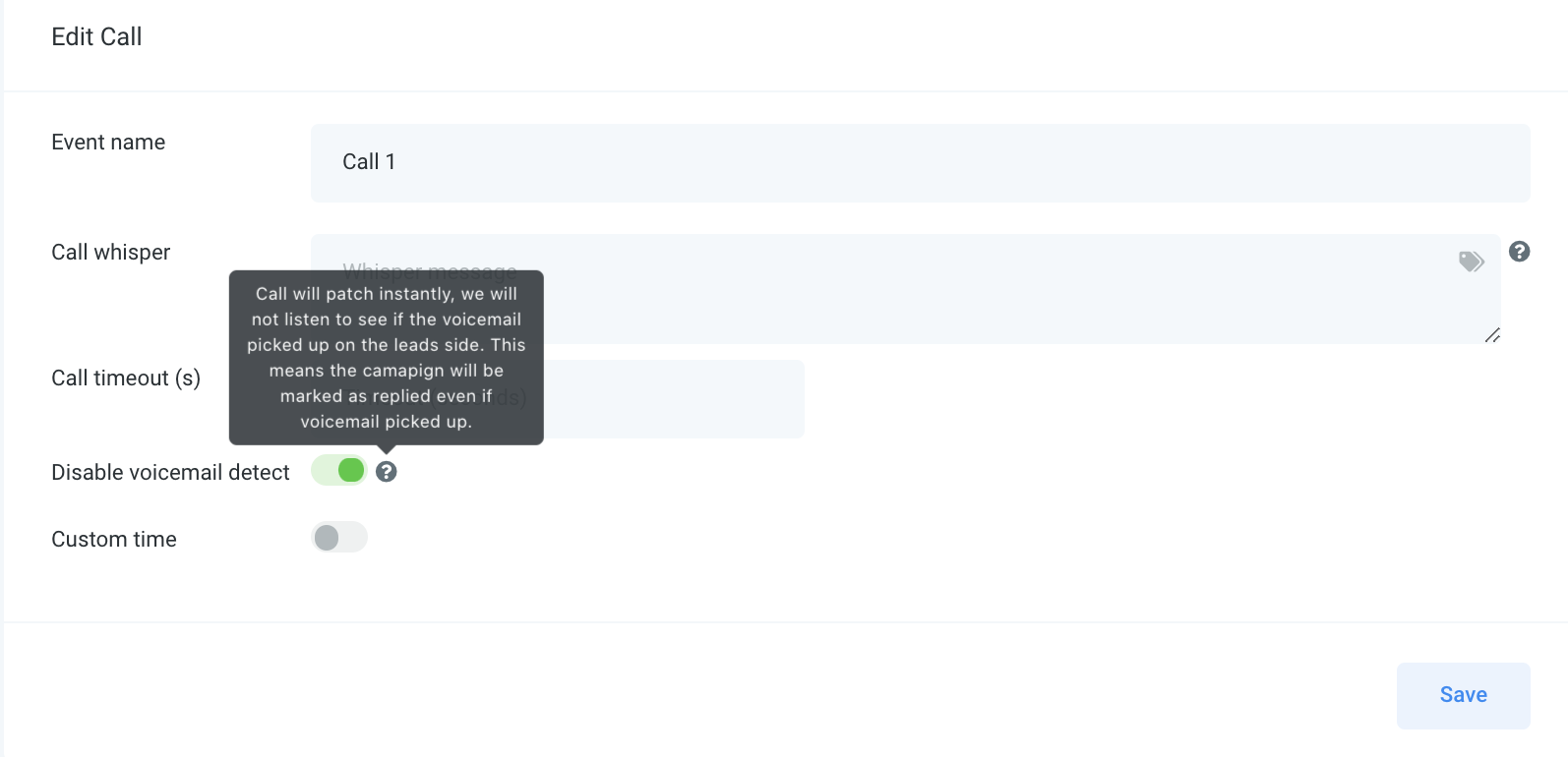
When the lead can't answer the call, you will hear this message: “couldn't connect with the lead” and the call ends so you can't leave a personalized voicemail.
To be able to leave a personalized voicemail with our Call event, go to the settings of the call step, you can turn on Disable Voicemail Detection.
You can upload the voicemail file here:
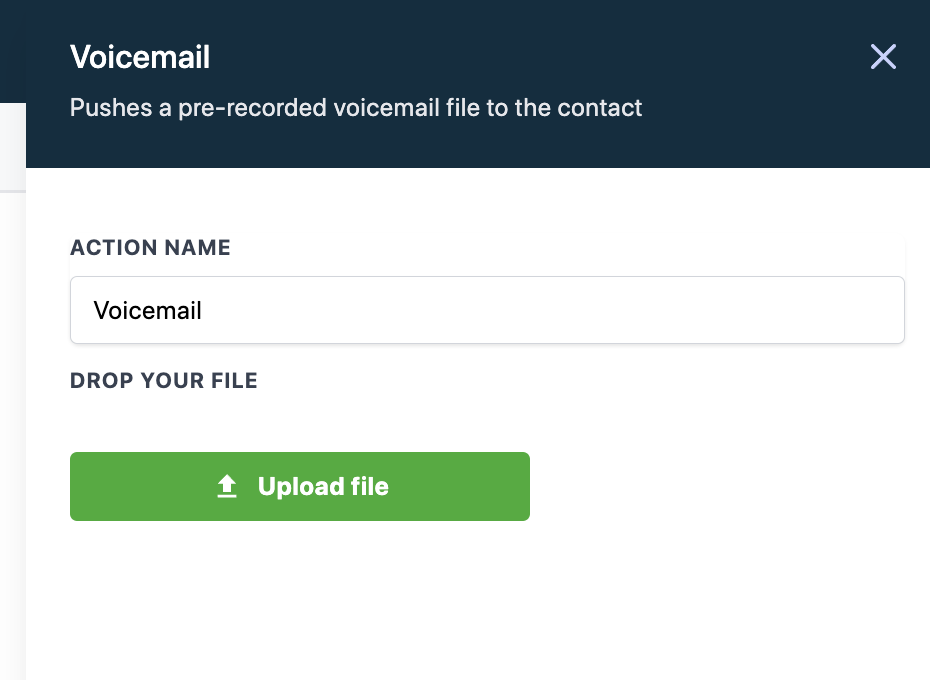
If the voicemail file is not working,
1. go to https://online-audio-converter.com and upload the voicemail file
2. Select 64kbps MP3, the lower the better
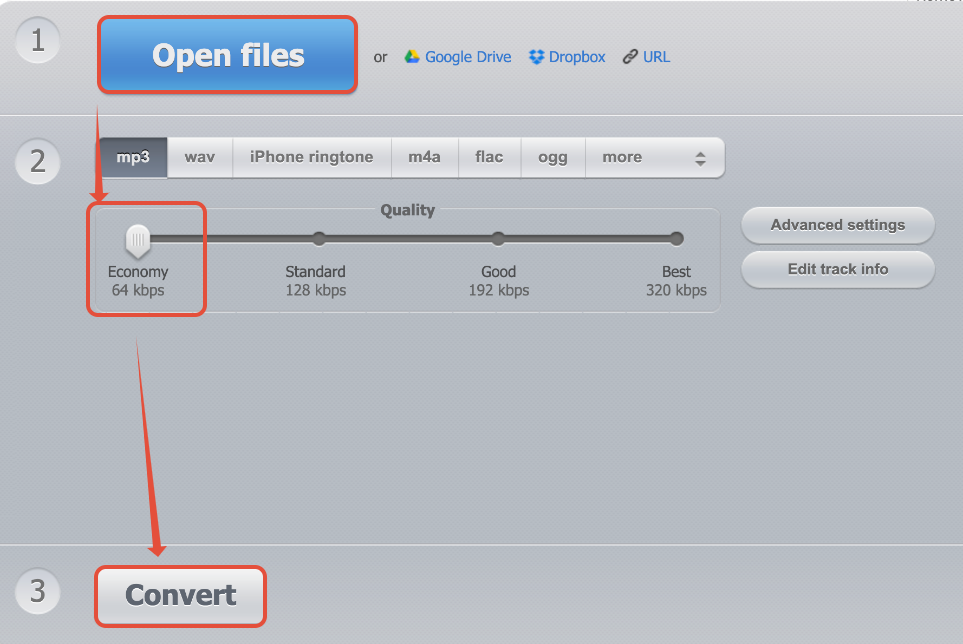
3. Upload back to LevelUp voicemail campaign/workflow