1. View Chat Widget Source On Contact Detail Page
When a contact initiates a conversation via a Live Chat widget, you will see that event displayed in the Activity Tab on the Contact Detail page in Contacts. (Example below).
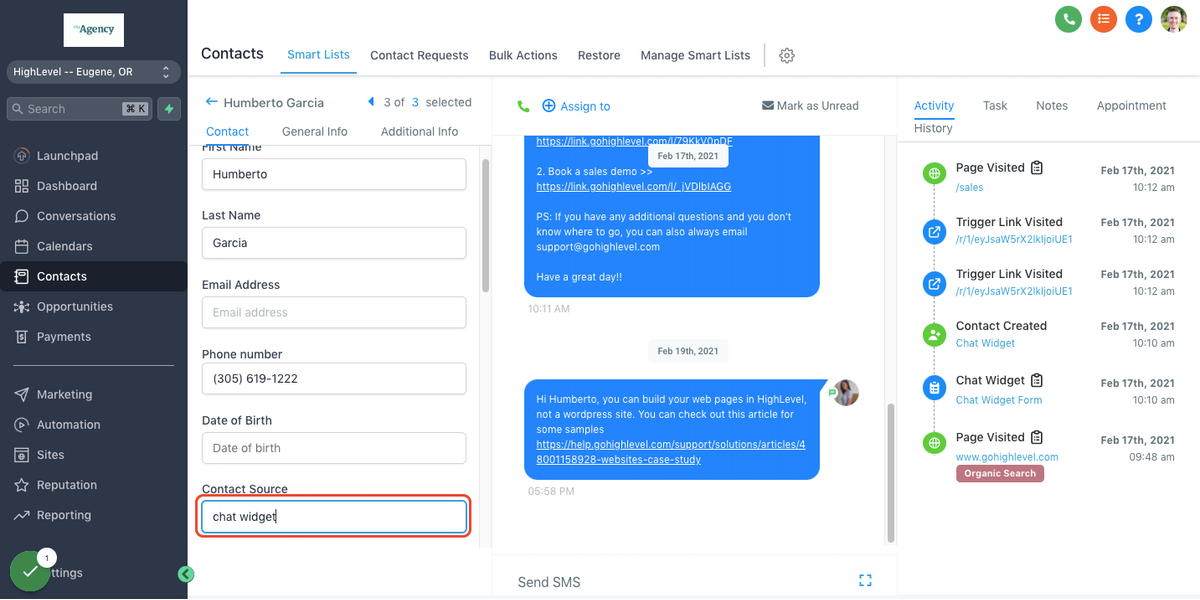
View Chat Widget Source On Contact Detail Page
2. Click on the Clipboard Icon to View
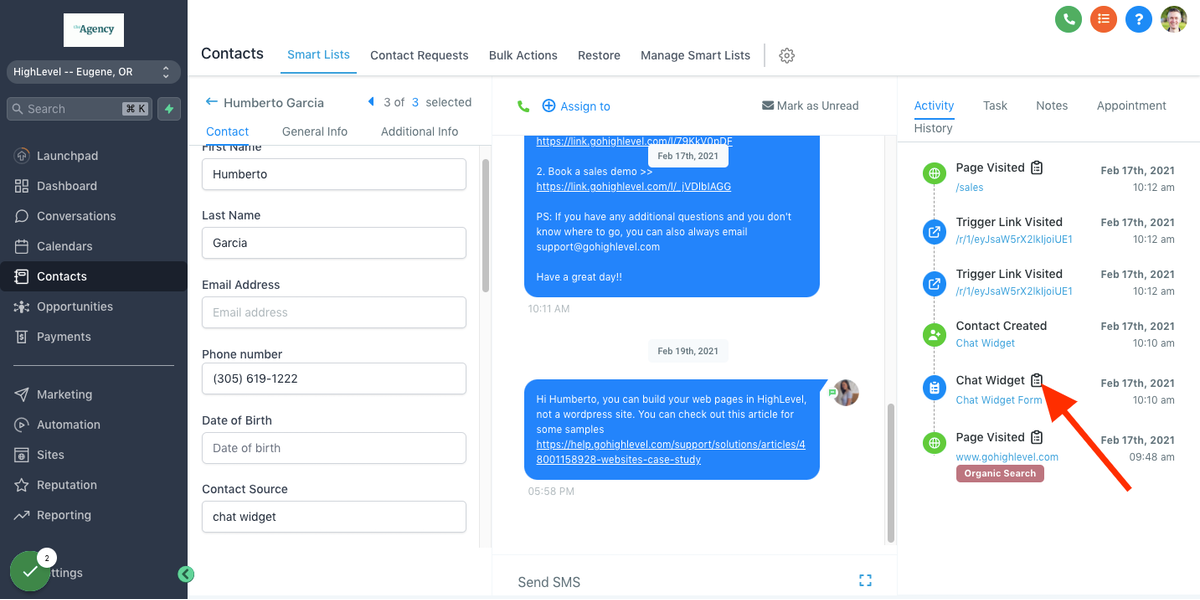
Click on the Clipboard Icon to View
3. Clicking the clipboard icon will open up the form submission detail (aka the initial message they entered into the Chat Widget) where you can view more information including the source (Organic Search, Direct Traffic, etc.).
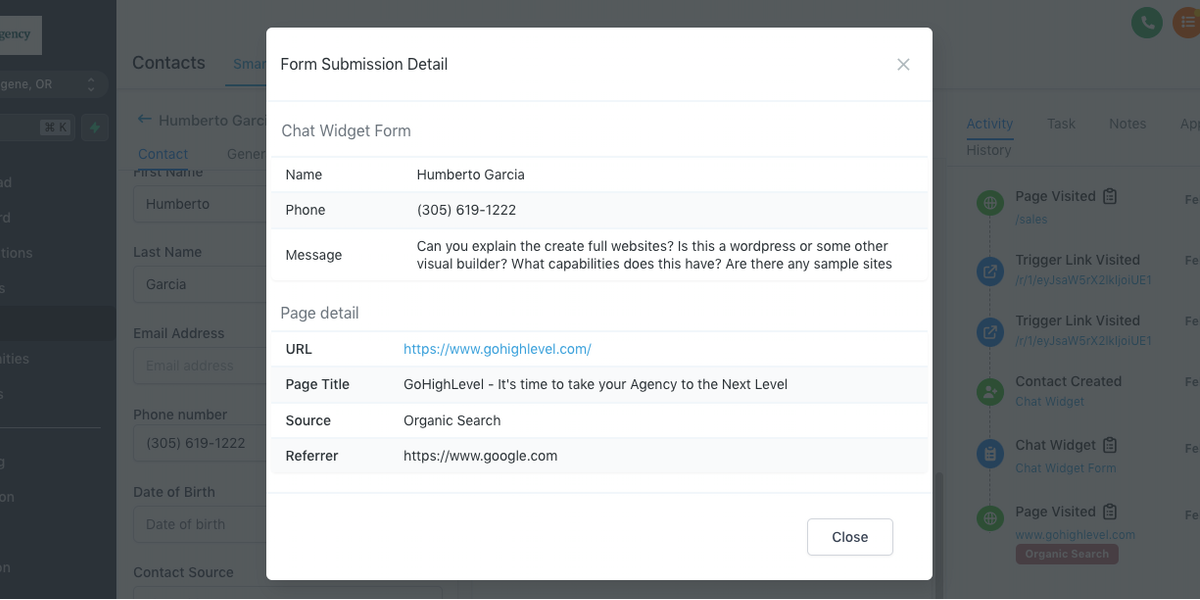
Clicking the clipboard icon will open up the form submission (aka the initial message they entered into the Chat Widget) where you can view more information including the source (Organic Search, Direct Traffic, etc.).
4. View Chat Widget Source In Form Submissions!
Go to Sites>Forms>submissions and select Widget Form on the dropdown menu
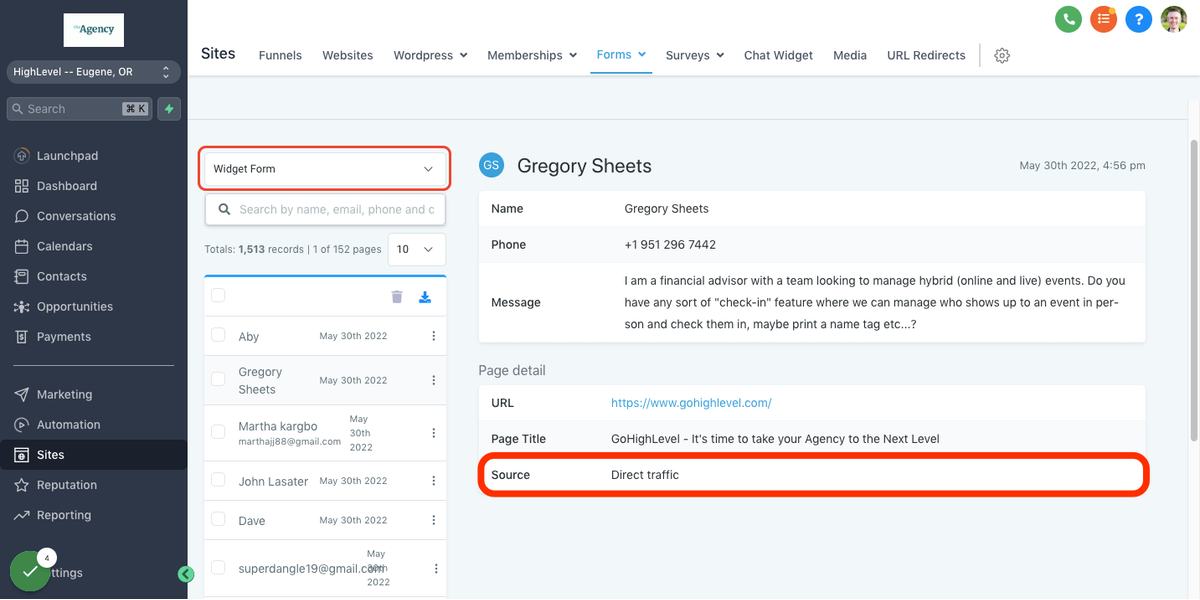
View Chat Widget Source In Form Submissions!
Notes:
- Yes, attribution will work for Live Chat Widgets that you've added to non-LevelUp websites, including sites you use the LeadConnector Wordpress Widget on. -Attribution may not work for some IOS users or any users who have privacy mode turned on as it blocks the cookie.